1. Check the scale and dimensions
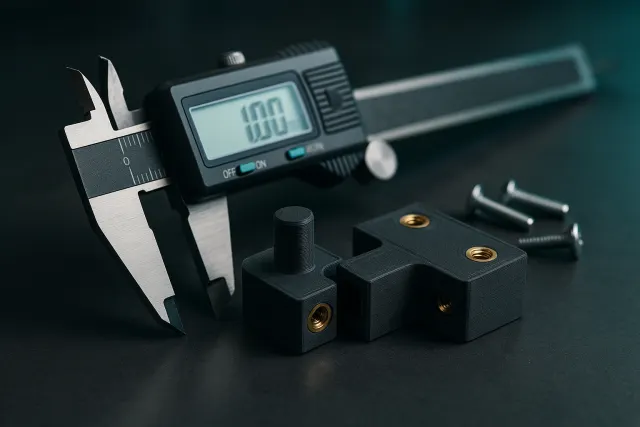
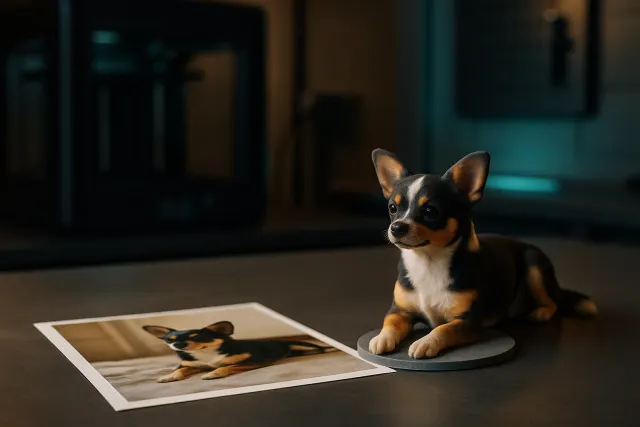
A model from a photo does not have a scale of its own: the AI cannot guess that a cup is 9 cm high. First of all, check the main dimension and scale the model to the desired scale. For a technical part generated from a description, check the dimensions that must correspond to an existing object: diameter of a hole, center distance of attachment, width of a groove.
With a parametric model, correct the dimension itself rather than stretching the part: a stretch also distorts the holes and thicknesses.
2. Control the thicknesses and fine details
The models generated, especially the figurines, sometimes contain very thin parts: fingers, antennae, clothing edges, decorative elements. In filament printing, a wall too thin does not print or breaks when the supports are removed.
- Locate the thin elements and thicken them or ask the AI for a touch-up.
- Avoid isolated tips: a slight rounding is printed better.
- For a mechanical part, keep regular walls around the holes and screws.
The game and thickness values to be expected according to the technology are detailed in tolerances and adjustments in 3D printing.
3. Make sure the mesh is printable
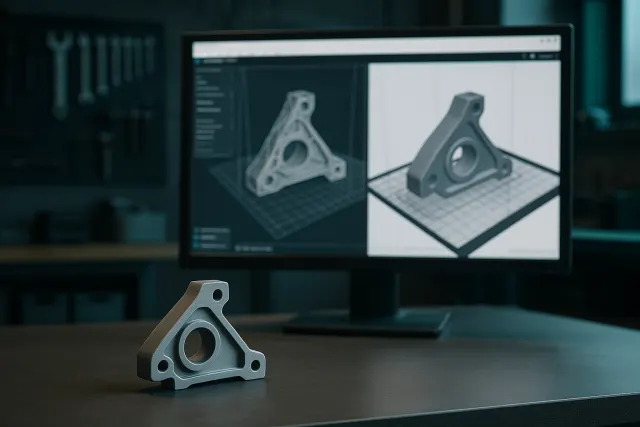
The slicing software needs a closed and consistent surface. A generated model can have holes in the mesh, inverted faces or pieces floating next to the main part. Most slicers automatically report and repair these defects at the import; check that no pieces are detached from the rest and that the part rests on the print bed.
4. Choose the orientation and limit the supports
The orientation on the print bed influences the solidity, the appearance and the quantity of supports.
| Situation | Recommended orientation |
|---|---|
| Standing Figurine | Standing, on a stable base, to limit the supports on the face |
| Support or square | The layers perpendicular to the main force, to avoid breaking between layers |
| Enclosure | Upward opening, to avoid supports inside |
| Flat piece with relief | Flat, the relief up |
For a figurine, a flat base improves adhesion to the print bed and the stability of the finished object. For a complex object, the Assembly Mode of the Studio generates separate pieces to be nested, each easier to print without supports.
5. Export in the right format
The STL contains only the shape: it is the most universal format, but it loses the colours. The 3MF retains the parts, their position and the colours: it is the format to choose for a multicolor printing in Bambu Studio, PrusaSlicer or OrcaSlicer. The guide Preparing a STL or 3MF details the export settings and the complete checklist.
6. Adapt the model to the material
The same model is not prepared in the same way depending on the material. In PLA, moderate overhangs and small bridges pass well; in TPU, flexible material, it is better to avoid hard to remove supports and provide walls a little thicker. In resin, the small details of a figurine stand out better than in filament, but the part must be oriented to facilitate flow and cleaning. Which material to choose Describe the properties of each material.
7. Print a test before the series
For a functional part, first print a copy, possibly on a scale for a miniature, before tossing several parts. Check the interlocking, mechanical fit and appearance, and then correct the model. If you do not have a printer, page online 3D printing explains how to order the print in our workshop, with the price displayed before payment.
Frequently asked questions
Is an AI-generated model directly printable?
Often, but you have to check the scale, the parts too thin, the orientation and the export format. These controls avoid most failed prints.
Why does my figurine break with the removal of the supports?
The thin parts (finger, accessories) are fragile in filament. Thicken them, reorient the figure to reduce the supports or add a base.
STL or 3MF for an AI model?
STL for single colour printing, 3MF for preserving colours and different parts of an assembly.
How do I correct a rating on a generated model?
On a parametric model, change the dimension directly with its cursor. On a mesh, you can scale it, but a precise modification requires a resumption in CAD.