The principle: colour by zone, not by pixel
In FDM, the technology most used for multicolour printing, every bead laid down is a single colour. A multicolour part is therefore made of distinct colour zones, assigned to each part of the model. Colours aren't blended the way an inkjet printer blends them: a gradient or a photo can't be reproduced as-is, it has to be translated into flat colour areas.
In practice, the machine has several filaments loaded in parallel and switches between them as printing progresses, sometimes with every layer. The quality of the result depends on three things: how the machine changes filament, how the file is prepared, and how the part is designed.
Other processes can produce colour "pixel by pixel" (material jetting, colour powder binding), with a result close to a photograph. They rely on specific, more expensive equipment, and generally produce parts that are mechanically weaker than FDM. To place these options, see our guide to 3D printing technologies.
Colour-changing techniques
Manual change at a given height
The simplest method: the print pauses at a defined height, the spool is swapped, then printing resumes. It suits plaques, embossed logos, signs or keyrings where each colour corresponds to a height band. It doesn't allow different colours within the same layer.
Single nozzle with automatic filament changer
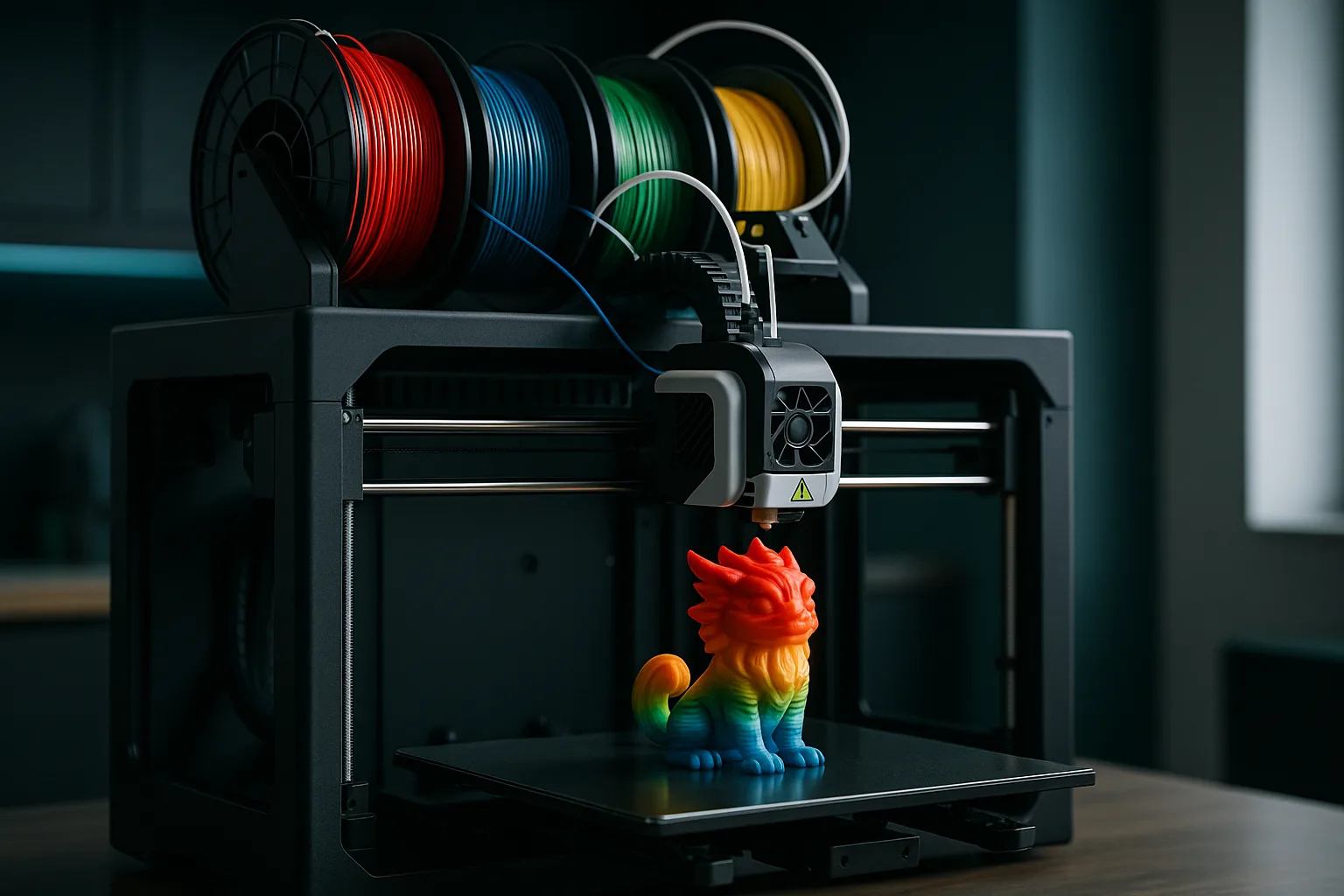
A module loads several spools (often 4, expandable) and feeds them one after another into a single nozzle. With each change, the old filament must be purged: the machine extrudes a certain amount of material until the colour comes out clean. This system allows different colours within the same layer, but generates waste and lengthens print time with every change.
Multiple nozzles or tool changer
Machines with two independent nozzles or a tool-changing head have one tool per material. The change is faster and purging is greatly reduced, even almost nil between two nozzles. This is also the setup that lets you combine two different materials: for example a soluble or easy-to-remove support alongside the main material, or a flexible TPU zone on a rigid body.
| Technique | Colours on the same layer | Purge waste | Print time | Typical use |
|---|---|---|---|---|
| Pause and manual change | No | None | Nearly unchanged | Plaques, embossed logos, signage |
| Buse unique + changeur | Yes | High if changes are frequent | Significantly longer | Figurines, decorative objects, small parts |
| Two nozzles or tool changer | Yes | Low | Moderately longer | Dual-material, technical parts, multicolour |
| Combined nozzles + changers | Yes, up to 8 colours or more | Moderate | Longer | Parts with many colours |
In our workshop, a Bambu Lab H2D combines two nozzles with filament changers: it prints up to 8 colours and large parts up to about 60 cm.
Purge, time and cost: what you need to know
Multicolour printing isn't "free". Every colour change costs time (retracting the filament, heating, purging) and material. The number of changes mostly depends on the number of layers that contain several colours, far more than on the number of colours itself.
- A tall part with a coloured pattern over its full height multiplies the number of changes: a 10 cm figurine printed in 0.12 mm layers has more than 800 layers, potentially just as many sets of colour changes.
- A flat part with a surface logo only needs changes on a few layers.
- Going from dark to light requires more purging than the reverse: white after black is the worst-case scenario.
Slicers offer options to reduce this waste: purging into the infill or into a secondary object, grouping several parts on the same plate to share colour changes, or ordering the colours intelligently. To estimate the impact on price, see our guide to the price of 3D printing.
If a colour only appears in a small area, consider whether it can be printed separately and attached (glued or clipped on). An eye or a small logo printed separately can sometimes avoid hundreds of filament changes over the whole height of the part.
Preparing a file for multicolour printing
The STL format carries no colour. For multicolour printing, two approaches are possible:
- One object per colour: you export each coloured zone as a separate, perfectly positioned body, either as separate STL files or ideally within a single multi-object 3MF. This is the most robust method, especially from CAD software.
- A coloured 3MF: colour is applied directly to the mesh faces (face painting in the slicer, or a colour export from modelling software). Handy for organic shapes and figurines.
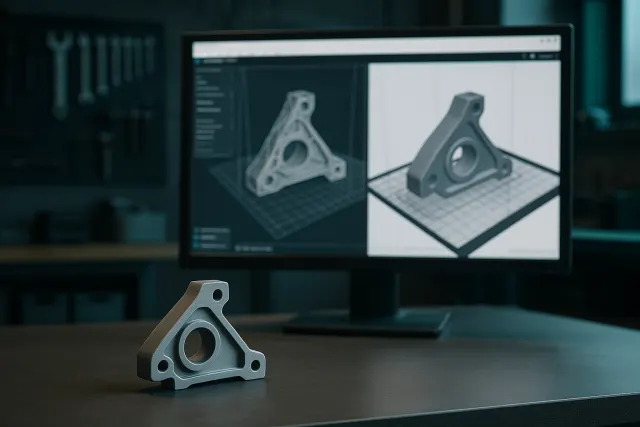
In both cases, check that the bodies don't overlap inconsistently and that each colour zone has sufficient thickness. The general preparation rules are detailed in our guide to preparing an STL or 3MF file.
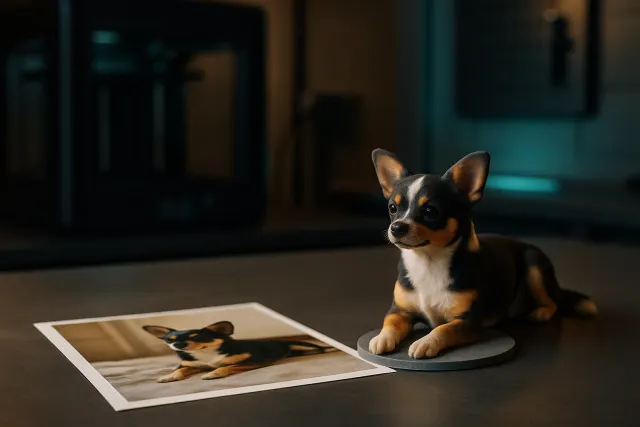
The AI 3D Studio also offers a colour 3MF export ready for multi-filament printing, including in figurine mode from photos. The process is described in our article from photo to 3D figurine.
Design rules for a good-looking result
- Limit the palette: 3 to 5 well-chosen colours often give a better result than a dozen similar shades.
- Plan large enough zones: below 1 to 2 mm in width, a coloured zone becomes hard to read and may disappear.
- Give light colours some thickness: a thin layer of white or yellow lets the underlying colour show through. Allow at least 0.6 to 1 mm of light-colour thickness at the surface.
- Use relief: a slight step (0.4 to 0.6 mm) between two colours makes the boundaries sharper and hides small blemishes.
- Factor in orientation: a horizontal colour boundary (parallel to the bed) is very sharp; a vertical or angled boundary shows the layer stair-stepping.
- Stick to compatible materials: mixing different materials in the same part requires them to bond with each other. PLA with PLA or PETG with PETG is no problem; some combinations, such as PLA with PETG, bond poorly. See our guide to choosing a 3D printing material.
Multicolour or painting: which to choose?
| Criterion | Multicolour FDM | Printing then painting |
|---|---|---|
| Level of detail | Flat colour areas, detail limited by the nozzle | Very fine, gradients and shading possible |
| Labour | Low, colour is built in | Significant (priming, painting, varnish) |
| Colour durability | Coloured throughout, won't chip | Depends on the paint and varnish |
| Batch reproducibility | Excellent | Variable, depends on the painter |
| Typical use | Customised objects, signage, small batches, stylised figurines | Collectible pieces, realistic models |
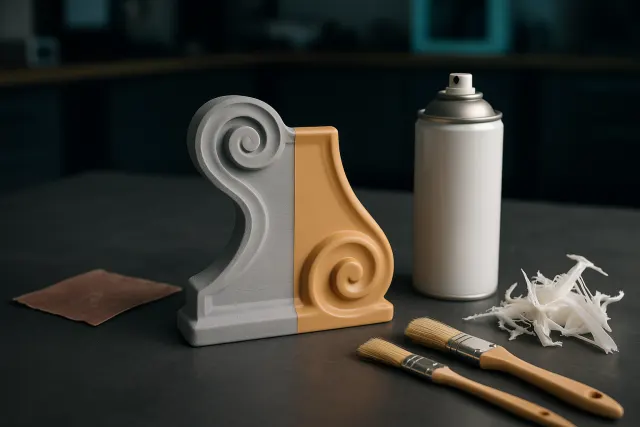
Multicolour printing is particularly useful for objects repeated in batches, since the colour is built in without touch-ups. For a very realistic "studio" look, hand-painted resin remains the benchmark; see our guide to finishing and post-processing.
For a branded object or a logo, provide the desired colour references. Filaments don't exist in every shade: the workshop will suggest the closest available shades and can print a small validation sample before the batch run.
Frequently asked questions
How does a multicolour 3D printer work?
A multicolour FDM printer loads several filaments and switches between them during printing. Either a single nozzle receives the filaments one after another with a purge at each change, or several nozzles each print their own colour. Each zone of the model is thus given a distinct colour.
How many colours can you print in 3D?
Common systems handle 4 colours per filament changer, and setups combining several changers or several nozzles reach 8 colours or more. In practice, 3 to 5 well-chosen colours are enough for most objects. Each extra colour lengthens the print time.
Why is multicolour 3D printing slower?
With every colour change, the machine has to retract the filament, load the next one and purge the old colour. On a part where every layer contains several colours, these operations repeat hundreds of times. Purge time and material therefore increase sharply depending on the geometry.
What file format is used for colour 3D printing?
3MF is the right format, since it preserves colours, materials and several positioned objects. STL contains no colour at all: you then need to supply one perfectly aligned file per colour. A coloured or multi-object 3MF avoids assembly errors.