STL or 3MF: which format should you choose?
STL is the historic format of 3D printing. It describes only the surface of the object as triangles (facets). It contains no unit, no colour, no material and no assembly information. This is both its strength (universal, read by every slicer) and its weakness (a lot of information gets lost).
3MF is a more recent format, designed specifically for additive manufacturing. It's an archive that can contain:
- an explicit unit of measurement (no more parts 25.4 times too small because of an inches/millimetres mix-up);
- several objects positioned relative to each other;
- colours and material assignment, essential for multicolour printing;
- optionally, the slicer's print settings.
| Criterion | STL | 3MF | STEP |
|---|---|---|---|
| Geometry type | Triangle mesh | Triangle mesh | Exact geometry (CAD) |
| Units | Not stored | Stored | Stored |
| Colours / materials | No | Yes | Partially |
| Multiple parts | Merged or separate files | Yes, positioned | Yes, assembly |
| Easily editable | Difficult | Difficult | Yes, in CAD |
| Recommended use | Simple monochrome part | Multicolour, multi-part | Part likely to need revisions |
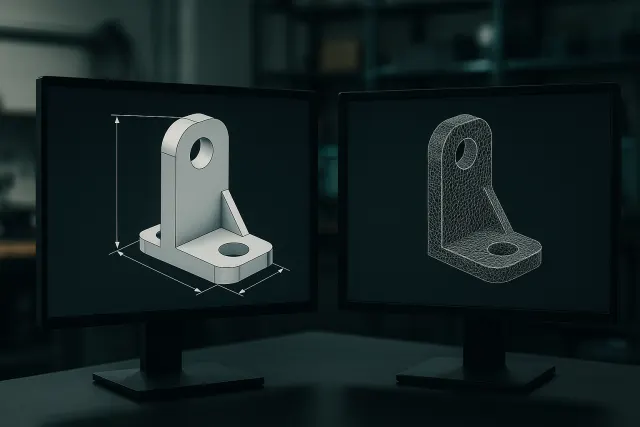
If your part was designed in CAD, include the STEP file alongside the STL or 3MF if you can: it lets the workshop adjust a dimension or a clearance without coming back to you. The difference between exact geometry and mesh is detailed in our article parametric model or mesh.
Checking the mesh: common defects
A printable mesh must be watertight ("watertight" or "manifold"): it must clearly define an inside and an outside. The most common defects are:
- Holes and open edges: a missing facet prevents the slicer from knowing where the material is.
- Inverted normals: some faces "look" inward, which creates empty areas or missing layers.
- Non-manifold edges: an edge shared by more than two faces, often when two objects touch at an edge or a vertex.
- Intersecting bodies: several overlapping volumes that haven't been merged. Recent slicers often handle this, but the result isn't guaranteed.
- Stray internal shells: an object hidden inside another, left over from an export or a modelling step.
Most free slicers and mesh tools offer an automatic analysis and repair function. It handles small holes well, but can distort a badly damaged geometry: always check the result visually. Automatically generated models (scan, sculpture, AI generation) are the most affected, as explained in our guide to AI 3D modelling.
The design rules to follow
A file can be technically valid and yet print poorly. Here are the benchmarks we apply in FDM with a 0.4 mm nozzle, and in resin:
| Parameter | FDM (0.4 mm nozzle) | Resin |
|---|---|---|
| Minimum wall thickness | 1.2 mm (0.8 mm possible if unloaded) | 0.5 to 1 mm depending on size |
| Minimum raised detail | ~0.5 mm | ~0.2 mm |
| Overhang without support | Up to ~45° | Supports almost always required |
| Bridge without support | Up to 10–20 mm depending on material | Not applicable |
| Minimum hole diameter | ~2 mm (re-drill if precision is needed) | ~0.5 to 1 mm |
| Engraved or raised text | Character height ≥ 5 mm, depth ≥ 0.6 mm | Height ≥ 2 mm |
For hollow resin parts, plan for drain holes (at least two, 3 mm or larger): otherwise liquid resin stays trapped, and the part can crack over time. For parts that assemble together, clearances are covered in our guide to tolerances and fits in 3D printing.
Think about orientation right from the design stage. A wide, flat face resting on the build plate avoids supports, improves adhesion and ensures a clean surface. If the part has no natural resting face, a small flat of a few millimetres is often enough to simplify everything.
Exporting correctly from your software
- Work in millimetres. This is the implicit unit for the vast majority of slicers. If you export to STL, check that the main dimension matches the expected value.
- Set the mesh resolution. A chord tolerance of about 0.01 to 0.05 mm gives smooth circles without bloating the file. A visibly faceted cylinder on the printed part almost always comes from an export that's too coarse.
- Export each part separately if they need to be printed in different orientations, or use a multi-object 3MF.
- Merge the bodies that should form a single part, to avoid intersections.
- Name files clearly: reference, version, desired material, quantity (for example "sensor-mount_v3_PETG_x4.stl").
Checking the file in a slicer
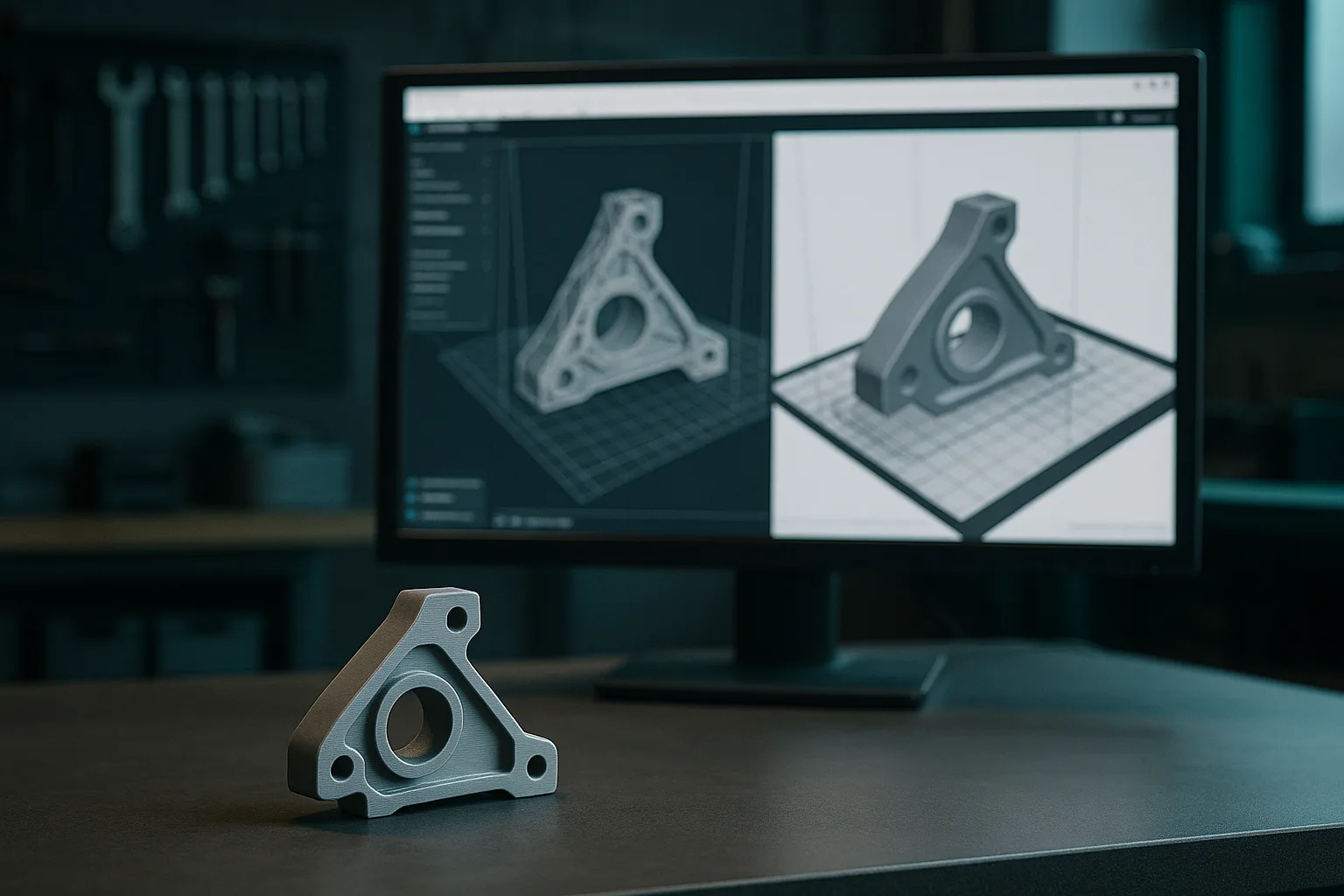
Before sending your file, open it in a free slicer, even if you don't own a printer. In a few minutes, you can check:
- The displayed dimensions: the bounding box should match the expected footprint.
- The layer-by-layer preview: a wall that disappears or a missing detail signals an area too thin for the nozzle.
- The generated supports: if they invade a visible face or an inaccessible cavity, revisit the orientation or add a 45° chamfer.
- The warnings: non-watertight mesh, floating object, part off the build plate.
This check doesn't replace the preparation done by the workshop, which will choose the orientation and settings itself depending on the machine, but it lets you eliminate blocking defects before requesting a quote, saving a round trip.
For a multicolour part, export to 3MF with one colour or material per zone, or one object per colour. How it works is detailed in our guide to multicolour 3D printing.
Checklist before sending to the workshop
- The mesh is watertight, with no holes or inverted normals.
- The dimensions are correct, in millimetres, checked against a known measurement.
- Walls are at least 1.2 mm thick in FDM, and the details are compatible with the process.
- Assembly clearances are built into the model.
- The format is appropriate: STL for simple monochrome, 3MF for multicolour or multi-part, STEP in addition if possible.
- The material, colour, quantity and intended use of the part are specified.
- Critical dimensions (bores, hole spacing, threads) are flagged, ideally with a sketch or an annotated screenshot.
Indicate the "visible" faces of the part. The workshop will place the supports and the seam (the starting point of each layer) on the hidden side, which noticeably changes the final look.
Don't have a file yet?
Three situations come up often:
- You have a physical part to reproduce: a 3D scan gives you an accurate model of it. Our workshop uses an industrial Creaform MetraScan scanner accurate to 0.1 mm or better; you can request a 3D scan of your part. See also our guide to 3D printed spare parts.
- You have an idea, a sketch or photos: the AI 3D Studio generates a printable part from a description or photos, with parameters adjustable via sliders, a free preview and an STL or 3MF export. For a good result, follow our method for writing a 3D part brief for the AI.
- You're looking for a common part (mount, spacer, box): the library of free parametric models lets you adjust the dimensions without CAD software.
Whatever the origin of the file, the same checks apply: a model from a scan or automatic generation must also be watertight, at the right scale, and compatible with the process's minimum thicknesses. A well-prepared model means a part printed right the first time, with no rework and no new order.
Frequently asked questions
What's the difference between an STL file and a 3MF file?
STL only describes the surface of the object in triangles, with no unit, colour or material. 3MF additionally stores units, several positioned objects, colours and materials. For multicolour printing or an assembly of several parts, 3MF is clearly preferable.
How do you know if your STL file is printable?
Import it into a slicer or a mesh analysis tool: it will flag holes, inverted normals and non-manifold edges. Then check the dimensions, wall thickness and overhangs. A layer-by-layer preview lets you spot empty or overly thin areas.
Why is my STL part too small or too large?
STL doesn't store a unit, and the slicer generally assumes millimetres. A part modelled in inches appears 25.4 times too small, a part in metres 1000 times too small. Export in millimetres, or use the 3MF format, which preserves the unit.
What's the minimum wall thickness for 3D printing?
In FDM with a 0.4 mm nozzle, allow at least 1.2 mm for a solid wall, which is three beads. In resin, 0.5 to 1 mm is enough depending on the part's size. For a mechanically loaded part, allow more, typically 2 to 3 mm.